

Who can use this feature?

Available on:
 All Culture Amp subscriptions.
You can import employee data directly from Deel into Culture Amp using a secure, one-way API connection. This ensures your employee list and demographics are always up-to-date.
Data Flow: Employee Data flows from Deel into Culture Amp (one-way sync). Changes made in Culture Amp will not sync back to your HRIS.
 Initial Setup Timeframe: As this integration is currently in a Beta phase, the setup and validation process typically takes 2–4 weeks. Timelines are good-faith estimates and fluctuate based on the complexity of your data model and the responsiveness of internal technical stakeholders during iterative testing
This Integration is Currently in Beta
This is a new HRIS integration that is currently in Beta. Beta means you’re one of the first to try out our latest integration before its full launch. During this phase, we're actively seeking your feedback to refine and improve the integration experience further. While it's fully functional and secure, you may encounter occasional bugs or changes as we fine-tune the experience. Your input is invaluable in shaping the final version, so please don't hesitate to share your thoughts and experiences with us via this survey.
Choosing Your Integration Method
We offer two primary ways to connect your employee data. The table below briefly outlines both and should help with the decision on which is the best approach for your organization:
Method | Type of Import | Best For | Key Difference |
Full Integration (API) | Full Employee Import | Organizations seeking real-time, daily automation of all employee data that the API supports. | Data transfer is handled automatically via a secure API connection. Users with an End Date in the HRIS become former employees instantly upon sync. If a user is simply removed from the sync report without an End Date, they will remain "Active" in Culture Amp until a manual sync is performed by our Culture Amp Support team. Properly terminating employees in your HRIS with an End Date is the only way to guarantee automatic deactivation. |
Partial Employee Import | Organizations that need complete control over file creation, have unique filtering requirements, or need to manage data fields not supported by the API. | You generate a file and securely transfer it to us at scheduled intervals. Users missing from the file are ignored, so must be included on the file with an end date, to become former. |
API Integration Checklist
Access Requirements & Terminology — Prerequisites and system logic.
Step 1: Connect & Authenticate — Locating and entering your API credentials.
Step 2: Field Mapping — Aligning your Deel demographics with Culture Amp.
Step 3: Activate Integration — Establishing the technical connection.
Step 4: Run Your First Sync — Reviewing and importing employee records.
Troubleshooting & FAQs — Solving errors, duplicates, and sync blocks.
Before You Start: Access Requirements & Terminology
To set up the connection, you’ll need:
Access to your Deel instance with the required role (see Permissions below).
Access to Culture Amp with Account Administrator or Employee data administrator permissions.
Important Considerations & Data Limitations
Important Considerations & Data Limitations
Employee ID Mapping (Worker ID): In Deel, the unique identifier used for syncing is the Worker ID. This will map automatically to the Employee ID field in Culture Amp. If you are transitioning from a manual CSV import, verify that your current Culture Amp Employee IDs match the Deel Worker IDs.
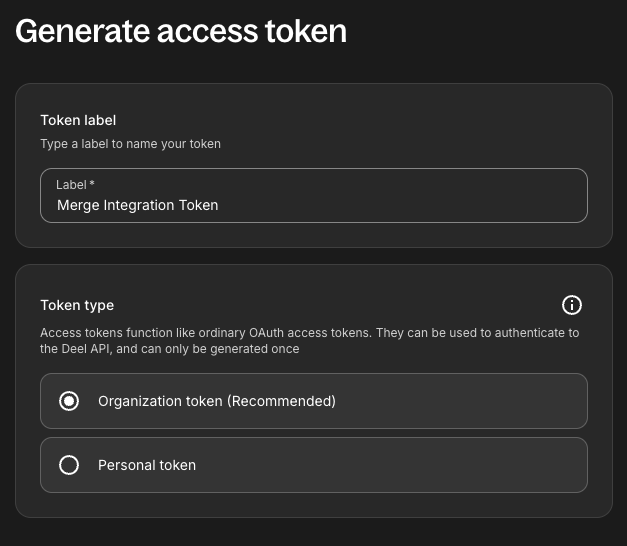
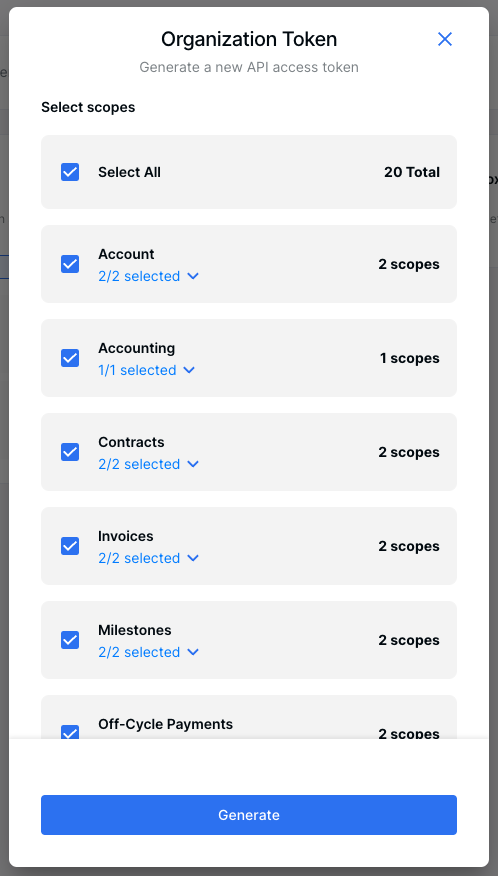
Essential Permission Scopes: When generating your API token in Deel, you must select all available scopes, specifically including "contracts." Missing this scope is the most common cause of "403 Forbidden" errors and will prevent Culture Amp from reading your employee data.
Unsupported Demographics (Gender & Level): Due to specific API restrictions within Deel, the Gender and Seniority/Level fields cannot be synced automatically at this time. If you require these demographics for your reporting, they must be managed via a manual file upload.
Hierarchy Sync: Culture Amp builds your reporting structure using the Direct Manager field in Deel. For the hierarchy to sync correctly, the manager must be an active user in Deel with a valid work email address that matches their Culture Amp profile.
Active Status Logic: The integration is designed to pull users marked as "Active" in Deel. Employees without a valid "Active" status or those missing a Start Date may not appear in the sync results.
Syncing Teams: Deel "Teams" are treated as a separate organizational group. Because these don't map automatically, you must manually align them to a Culture Amp demographic (like "Department") during Step 2: Field Mapping.
Project Planning & Timelines: While a technical connection is typically achievable within one week, we suggest a conservative planning window of 2–4 weeks to allow for custom field configuration. As an emerging integration, this period is necessary to validate that specific contract types and organizational demographics are behaving as expected. Actual completion dates are subject to current API performance and the responsiveness of technical stakeholders during the validation phase.
Terminology Breakdown
Terminology Breakdown
When working with your technical Deel administrator, these terms may be helpful for clarifying your data structure:
Term | Also Known As | Definition & Example |
Worker ID | Employee Number | The unique identifier in Deel (found in the People profile) that anchors the record to the Culture Amp Employee ID. |
Organization Token | API Key | The unique security string generated in the Deel Developer Center to authorize the integration. |
Direct Manager | Supervisor | The person assigned to a contract in Deel who will be used to build your reporting hierarchy. |
Team | Group / Department | The organizational unit in Deel (e.g., "Engineering") that requires manual mapping in Step 2. |
Required Permissions & Rationale
Required Permissions & Rationale
Permission/Role | Permissions Needed in Deel | Rationale |
Organization Admin | Developer Center Access | Required to generate the Organization Token and select API scopes. |
People (Read) |
| Allows Culture Amp to pull demographic data like names, emails, and hire dates. |
Contracts (Read) | Full Scope Selection | Essential: Prevents 403 errors and allows access to the worker data model. |
Teams (Read) |
| Allows organizational groupings to be pulled for manual mapping. |
Step 1: Connect & Authenticate Your Deel Account
Sign in to Culture Amp with an account that has Account Administrator or Employee data administrator access.
Navigate to your Settings > Account > Integrations page in the Culture Amp platform.
Select Deel from the list of integrations and click Continue setup
When asked how you would like to authenticate, select Use my Credentials
Click I am admin to confirm your Deel administrator access
When asked what type of account you're connecting, select Production data
You will see CultureAmp’s request to read your Deel employee data. Click Next
On the Connect Deel screen, click Open Window. You will be directed to enter your credentials and sign in.
Follow the prompts to generate and enter your Deel Organization Token
🔑 How to Generate your Deel Organisation Token
🔑 How to Generate your Deel Organisation Token
To authenticate Deel, you will need to provide the following information:
Organization Token
Prerequisites:
You must be a Deel admin to complete the linking flow
Your Deel account must have API access enabled. Contact your Deel account manager to confirm if you are unsure of this
 Note: The steps below are sourced from Merge, our integration partner. We recommend checking their official guide for the most current instructions: Merge Deel Account Linking Guide
Instructions:
Step 1: Create an organization token
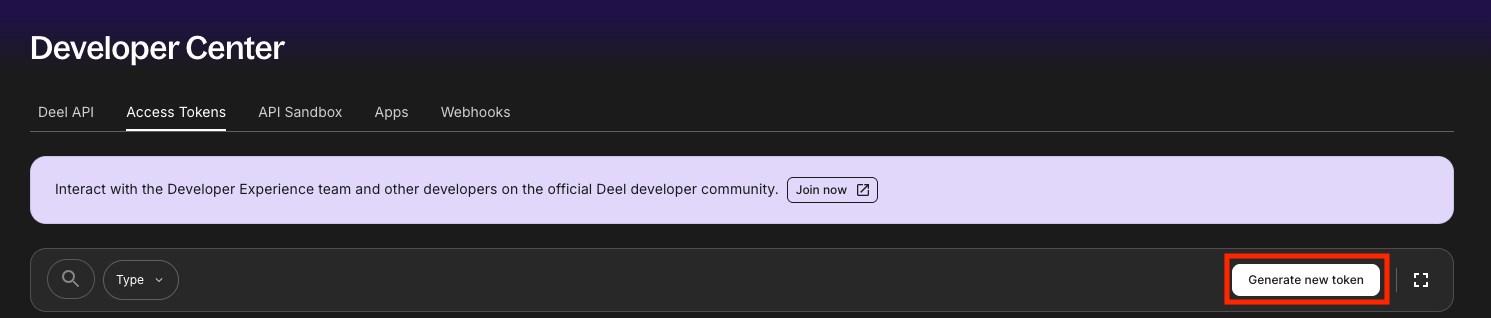
In your Deel portal, go to Developer Center in the drop-down menu from the top bar

Click generate new token
Label your token, choose "Organization token (Recommended)", and click next
Select all scopes to add to your organization token and click generate
Step 2: Enter your token in the linking flow
Enter the token you have just generated and click Submit


Step 2: Setting Up Demographic Field Mapping
Once you have authenticated with Deel, you will be prompted to map the demographic fields you would like to import into Culture Amp.
 Note: Core demographic fields map automatically and should not be manually configured unless instructed by a Culture Amp specialist. Please note that once these fields are set up, they cannot be edited or deleted. If you need to make changes, reply with "ask a person" in a support conversation to speak with a specialist.
Core Demographics: Automatic Mapping
Core Demographics: Automatic Mapping
This table is intended for your technical Deel administrator. The following fields will sync automatically from Deel to Culture Amp.

 Note: While the "Typical Deel UI Label" shows the common reference field in Deel, exact UI labels and underlying field names may vary by tenant and configuration.
Typical Deel UI Label | Primary Deel API Endpoint (Data Location) | Culture Amp Field (The Destination) |
Work Email |
| Email (Unique Identifier) |
Worker ID |
| Employee ID (Unique Identifier) |
Full Name |
| Name |
First Name |
| Preferred Name |
Birth Date |
| Date of Birth |
Start Date |
| Start Date |
End Date |
| End Date |
Direct Manager (Work Email of referenced Manager) |
| Manager Email (Hierarchy demographic) |
Custom Demographics: Manual Mapping
Custom Demographics: Manual Mapping
If you track additional employee data in Deel that you want to use as demographics in Culture Amp, follow these steps to set up custom mapping.
Step 1. Map Fields
Now that the initial authentication is complete, on your Integrations page, click Map fields.

Step 2. Select the Data Model
Select the data model for your target field (e.g., Employee).

Step 3. Set Details for the Target Field
Set the details for the field you are targeting in Culture Amp (the demographic name, e.g., Location).

Step 4. Choose the Matching Field from Deel
Select the matching Deel field that contains the data.

Step 5. Save Mappings
You can Save mappings or click the + Field mapping icon to add more.
Alternatively, if you’re not ready to map fields yet, you can click Skip for now and return to mapping later.
 Tip:Your HRIS may limit access to specific custom fields. If you cannot find a required demographic field during mapping, you may need to:
Map an alternate custom field that contains similar data.
Manage the demographic outside of Deel directly in Culture Amp via manual imports or SFTP.
Excluding Employees
Excluding Employees
To exclude specific employees, you must first specify them in your Deel system (e.g., by creating a custom field or using an existing one) and set the value of this field to "Yes" for the employees you want to exclude.
Step 1. Start Mapping
Click on Map fields to begin the workflow.

Step 2. Select the Exclusion Field
You will see a field mapping for Exclude from Culture Amp in the workflow.
Search for the corresponding field from your HRIS under the Exclude from Culture Amp field.
Ensure that employees you want to exclude are marked as "Yes" in your HRIS.


Step 3. Save Mappings
Click Save mappings
 Note: Only demographics with
 Yes values can be mapped to Exclude from Culture Amp in your integration settings. You can’t use an existing demographic (such as Job Title) to exclude participants based on a specific value like Contractor.
Step 3: Activate Integration
After mapping your fields, click Sync, and the system will run an initial sync to connect your Deel account details and mappings.
 Note: This sync does not import employee data yet
You will see a "Syncing data" message. This initial sync can take up to 12 hours to complete, depending on the size and complexity of your Deel configuration.
Feel free to navigate away from the page. The process runs in the background.
The "Syncing data" message confirms the connection and mapping setup. Once this first sync completes, you can proceed to import your employee data through another sync.

 Note: As part of our commitment to data security, only data relevant to your import and field mappings will be stored.
Step 4: Run Your First Employee Data Sync
Once the initial setup sync is complete, the Integrations page in Culture Amp will update. Follow these steps to run your first employee data import:
Click the Finalise sync button.
Click Get Started.
On the review page, ensure Sync is selected in the "Sync with merge" section (ignore the other options).
Culture Amp will validate the data. If there are no concerns, click Next.
Review the data: Carefully examine the review screen, which shows the number of new employees to be created, existing employees to be updated, and employees to be deactivated.
If the data looks correct, click Import Data to pull the employees into Culture Amp.
After the import is complete, click Go to Users to review the new users.
 Note: If you see any unexpected numbers (e.g., too many employees being deactivated or created), do not proceed with the import. Check the Troubleshooting section or reply with "Ask a Person" in a Support Conversation to speak with a Product Support Specialist.
Once these steps are completed, you will see the green "Syncing data" notification appear on the Integrations page.

After syncing is complete, you will see the latest sync information, including the date and time of the last sync, and confirmation that your integration is Connected on the Integrations page.

Set Up Automated Daily Syncs
Set Up Automated Daily Syncs
By default, auto-syncs are Off. We recommend enabling daily syncing to ensure your employee demographics are kept up-to-date.
To enable: Go to Integrations, click on the Off button and toggle Auto-sync On.
To disable: Go to Integrations, click on the On button, then click Turn off auto sync.

 Note: Auto-sync won’t run if the Finalise sync step is still displayed. Click Finalise sync to finish setup.
Troubleshooting/FAQs
If the fixes below don't resolve your issue, please remember that the high potential for customization in Deel means complex mapping or sync problems often require a specialist. Please reply with "Ask a Person" in a Support Conversation to speak with a Product Support Specialist.
General Data Integrity & Import Management
The first step when investigating any data issue is to check the Import Summary Screen for your most recent import.
Go to Settings > Employee Data > Import History.
Select your most recent import to view details.
This screen provides information on the state of your integration, any specific errors, or will prompt you to run a manual sync to identify problems.

Deel: Integration-Specific Errors
Deel: Integration-Specific Errors
Issue | Cause | Suggested Fix |
Missing Data/403 Permission Errors | The Deel Organisation Token lacks the required permissions to read specific data objects. | |
Terminated Employees Still Showing as "Active" | The employee was removed from the Deel sync report or deactivated without a populated End Date. | Immediate Fix: Re-add the user to the Deel report with a valid End Date and sync again. Secondary Fix: If they cannot be re-added to the report, reach out to our Culture Amp Support team (via "Ask a Person") to request a manual sync to process the deactivation. |
Need to Edit/Delete Mappings | Mappings are locked in the Culture Amp platform once set up. Adding or editing custom mappings often requires a full back-end sync to be triggered by our Culture Amp support team for the changes to be reflected in the platform. | Contact Culture Amp Support:
|
"Failed" Status for Groups | Missing "Contracts" scope in token. | Fix: Regenerate your Organization Token in Deel and ensure all scopes (including contracts) are selected before updating the credentials in Culture Amp. |
Cannot Map Gender or Level | Deel API restrictions. | Alternative: These fields are currently blocked by Deel's API. Manage these demographics via a manual CSV upload if they are required for reporting. |
Missing Employee IDs | Known issue with the SCIM | Contact Support: This is a core field and cannot be mapped manually. Please reply with "Ask a Person" in a Support Conversation to have a specialist adjust your backend mapping to pull the |
Switching From CSV or Other Imports
Switching From CSV or Other Imports
If you are moving from CSV uploads or a different integration, keep the following in mind:
Demographic Consistency: When mapping fields, you must map the data to the exact same demographic field you used historically (e.g., mapping to "TEAM" is different from mapping to "TEAM NAME"). Using an incorrect or slightly different title risks discontinuity in your trended survey results.
Recommended Action: To avoid confusion, we recommend navigating to Settings > Employee Data Demographics and deleting the old, unused demographics after your first successful sync. (This won't impact any previous survey results.)
Handling Duplicate Employees
Handling Duplicate Employees
Culture Amp uses two fields as unique identifiers for user profiles: Email and Employee ID.
As long as at least one of these remains consistent between Deel and Culture Amp, the sync will successfully update the existing profile rather than creating a new one.
Duplicate Risk: If you change both the Email and the Employee ID simultaneously in Deel, the sync will not find a match and will create a duplicate profile.
If you see a duplicate profile error flag during your import, take the following steps:
Scenario | Action to Take |
A. Before Changes Are Applied | During the first sync review screen, stop the sync. Update the employee emails in Culture Amp to match those in Deel.
|
B. After Changes Are Applied | To clean up the duplicated profiles:
|
Sync Blocked to Protect Employee Privacy
Sync Blocked to Protect Employee Privacy
Your automated daily sync might be blocked if Culture Amp detects a high-risk change for an employee. You will receive an email notification if this occurs.
When It Happens: The sync is blocked if a combination of an employee's Name, Date of Birth, or Email is changed simultaneously.
Purpose: This prevents one employee from accidentally getting access to another employee's private information (like performance reviews).
Fix: If you've intentionally changed the employee's details, you can run a manual sync to push the change through. Go to Settings > Account, click Integrations, and select Sync. Culture Amp will guide you through the rest.
Redaction of Sensitive Data
Redaction of Sensitive Data
As part of this integration, Culture Amp has the ability to redact sensitive data at your request. If you need any fields to be disabled/redacted for your account, please reply with "Ask a Person" in a Support Conversation to speak with a Product Support Specialist.
💬 Need help? Just reply with "Ask a Person" in a Support Conversation to speak with a Product Support Specialist.